Tree Menu Builder - F.A.Q
Please go to Global Settings > Highlight to check the option "Auto highlight current node". In this case, when you click a sub node and enter the page, the sub node will be expanded and highlighted on that page instead of being collapsed.
In the Tree Panel, only select the parent nodes of which you want to expand the sub nodes, and then go to Sub-tree Settings > General to check the option "Expand the sub-tree".
First, select all the first level nodes in the Tree Panel. Then go to Sub-tree Settings > General to check the option "Expand the sub-tree".
First, select all the parent nodes in the Tree Panel. Then go to Sub-tree Settings > General to uncheck the option "Expand the sub-tree".
Please go to Global Settings > General to check the option "Single Expand".
Please go to Global Settings > Highlight to check the option "Auto highlight current node", and check the option "Single Expand" in Global Settings > General.
Solutions:
1. Please go to Global Setting > Advanced panel;
2. Check the option "Record the tree menu status and recall for next time" to make the menu stay open.
There are four cases for selecting many nodes at one time: all nodes, popup nodes, inversion selection, and many nodes. For all the nodes, please click the button "Select All" in Tree panel; For all the popup nodes, click the drop-down arrow to check the option "All Popup Nodes"; if selecting some nodes, but now you need to select the rest, please click the drop-down arrow to check the option "Invert Selection"; For some nodes, please select multiple nodes while press the Ctrl/Shift button on the keyboard.
On the Tasks Panel, you can click the options in Node Settings after selecting many nodes, and edit the properties in bottom panel. So, the nodes that you selected before have the same property.
Please check if you uploaded js files, or if you uploaded the js files to the correct directory. Once setting the web path for the tree menu, you should upload the js file to corresponding directory; if you do not set the web path for the menu, please put the js file in the same directory with the menu pages.
"Script Path" is to set the location of the js files and "Image Path" is to set the location of image files used in a menu. When your menu is used on multiple pages that are not in the same directory, you need to set Script Path and Image Path to avoid the path problem.
"Link prefix" is a convenient setting when you test your absolute links both locally and online. If you use relative links, it is not necessary in fact. For example, supposing all the pages are in the local folder C:/menu/, and all will be uploaded to https://www.yourdomain.com/ , in this case, when you test your pages locally, you just input C:/menu/ in the Link Prefix with relative links of the pages. When all tests are finished locally, you must change the Link Prefix into https://www.yourdomain.com/ to enable the links to work properly online.
After installing SP2 for Windows XP, Internet Explorer will restrict JavaScript to run when you view files in local/network folder, so the message you see pops out. This block content issue is set by Microsoft for considering on Operating System' safety issue of Windows XP.
But it should not influence on viewing the tree menu on the web server. After you publish your website on the web server, the message won't show up.
Now you can go to "Tools > Internet Options > Advanced Tab > scroll down to the security (at the bottom)" and tick "Allow active content to run in files on My Computer" then click OK button. Then the menu will display.
Yes, users can set width and height of the whole tree menu directly by entering the value in Global Settings > General in Sothink Tree Menu. In the website, you can place the tree menu in the fixed areas, and make the web layout within your control. Setting width or height of the tree menu are less than its actual size, the scrolling bar appears and its height or width will adjust automatically.
View video tutorial here.
View video tutorial here.
Cilck here to get the answer.
Cilck here to get the answer.
If you get the following message: The "Sothink Widgets" extension conflicts with the existing "Sothink Widgets" extension. The installation files for these extensions have the same name. Do you want to replace it?
That's because you have installed "Sothink widgets" on your computer. You can click "Yes" to replace your original file and update the widget to the latest version.
Then, "Sothink" item will be added to the menu bar of Dreamweaver automatically. You can also follow the steps below to install Dreamweaver extension manually:
Launch Macromedia Dreamweaver
Choose Help > Manage extensions
In Macromedia Extension Manager, choose Sothink Widgets, then click File > Remove Extension to remove it
Choose File > Install Extension
Select \Program Files\Common Files\SourceTec\Dreamweaver\DWSothink.mxp and click "Install"
Please make sure you have closed Dreamweaver and Sothink Tree Menu program during the process of installation.
Possible Reason and Solution:
It is probably because you have used # in link area. If there is actual link for the node, please remove # and just leave it blank.
Solution:
Yes, you can modify the color for each node in different status. Please choose the node in left Tree panel, go to Task panel > Node Settings > Background, and then you will see the properties settings for three status, Normal, Mouse Over and Select.
You can change the color upon your wish in the properties panel.
Solutions:
You can change the Indent value in General property panel of Global Settings.
Solutions:
Yes, the current version of Sothink Tree Menu supports collapsing previous sub-nodes when clicking another node. Please go to Global Settings > General’s property panel, and check the option "Single expand".
If your Sothink Widgets disappear on the toolbar in FrontPage, you can follow the below ways to reappear it on the toolbar.
One is to click the "Tools" command on the menu bar; and then choose the option "Add-ons" from drop-down list; finally, check the "Sothink Widgets" in "COM Add-ons" dialog, click "OK" to close the window. The "Sothink Widgets" is shown on the toolbar successfully.
Another is to double clicks in the blank area of the toolbar, check the "Sothink Widgets" from the pop-up list. The "Sothink Widgets" is shown on the toolbar successfully.
Sothink Tree Menu has solved this problem since the earlier version 2.2. Please upgrade to the latest version. If using previous version of Tree Menu in Expression Web, you will see the tip bar in all preview windows. Security information appears in preview window, which results from security settings of Expression Web. You can get it fixed temporarily by modifying the local security settings of Expression Web, which is to set the value as "0" for "EXPRWD.EXE" in the register sheet
[HKEY_LOCAL_MACHINE\SOFTWARE\Microsoft\InternetExplorer\Main\
FeatureControl\FEATURE_LOCALMACHINE_LOCKDOWN].
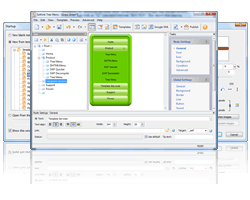 Sothink Tree Menu allows you to create JavaScript tree menu for huge category website. Build cross-browser tree menu, fast loading navigation bar and SE DHTML menu without writing a single line of JavaScript code. 50+ templates; image library; and seamlessly integrate with HTML editors, Dreamweaver, FrontPage, etc.